A better keyboard layout
Vahan July 01, 2026 #Design #DIY #Ergonomic #KeyboardTwo years ago, as I was touch-typing on my keyboard at my day job, I realized that I often made mistakes when I switched rows. My fingers would end up between two keys instead of landing on one specific key.
For example, if I pressed H with my right index finger and then tried to press U, I would often press Y instead or press both Y and U at the same time.
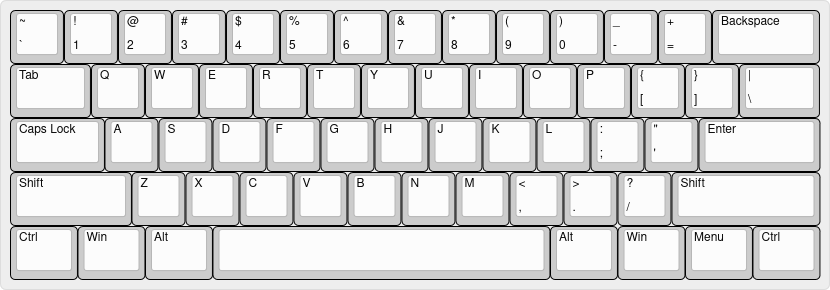
Stagger
The main reason why this happens is that the top row is staggered asymmetrically by 0.25 keys to the left with respect to the home row while the bottom row is staggered by 0.5 keys.
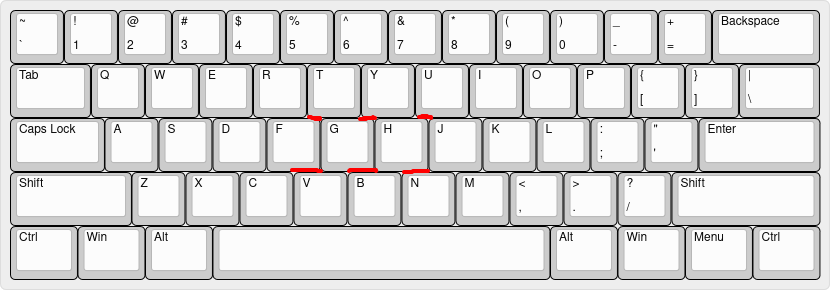
It means that your fingers have to move horizontally by either 0.25 or 0.5 keys when switching rows. This requires a lot of training to be able to do accurately and consistently while touch-typing.
A marginally better alternative would be to make the row stagger symmetrical. Horizontal movements when switching rows would then consistently be 0.5 keys.
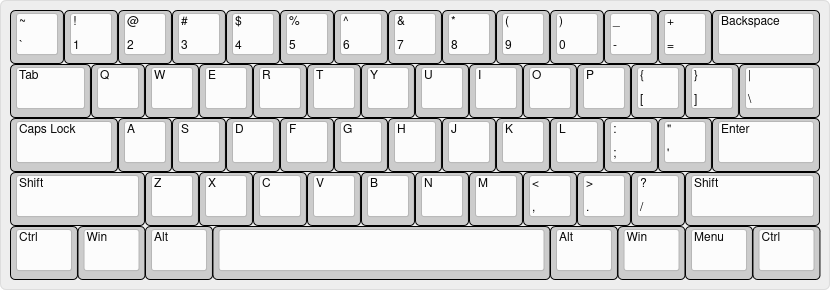
Unfortunately, this doesn't completely solve my accuracy problem.
According to the standard touch-typing rules, I'm supposed to hit the T, G, B keys with my left hand and the Y, H, N keys with my right hand.
It means that both of my hands should move along a top-left to bottom-right axis when switching rows.
This goes against what is easy and natural for muscle memory.
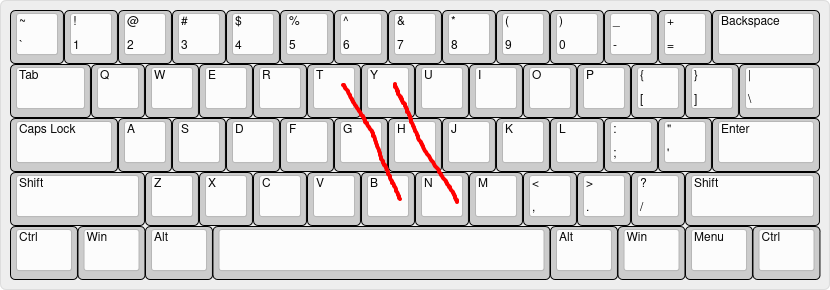
It would be much more intuitive if our hands moved along mirrored axes:
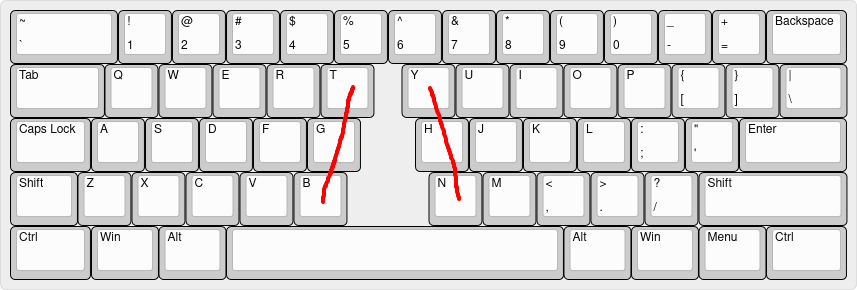
However, it is still uncomfortable and hard to move our hands and fingers horizontally. It is more natural to move fingers vertically.
Thus, we can do even better if we almost completely eliminate horizontal movement. The naive approach would be the following:
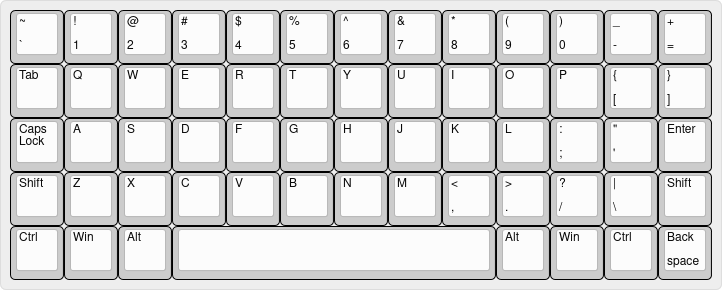
This ortholinear keyboard layout still has 2 obvious flaws.
The first issue is that it forces your hands to be parallel which puts strain on your wrists.
The second issue is that it doesn't take into account that fingers all have different lengths.
The solution is to split our keyboard into 2 parts, rotate them to match the most comfortable angle for our wrists and introduce columnar stagger.
The Atreus keyboard layout is such an example:
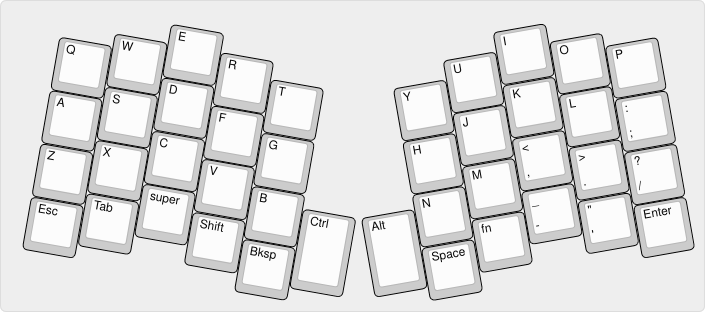
We'll keep the ortholinear layout for the rest of this article as it is easier to modify.
Layers
Now that we've explored the subject of stagger extensively, let's talk about the second biggest ergonomy killer: hand movement.
Doesn't reaching for the numpad or even the Escape key feel exhausting?
What if we had another key like Shift that gave you access to another layer of keys?
We can split our space bar into multiple thumb keys and use one of them as a layer key:
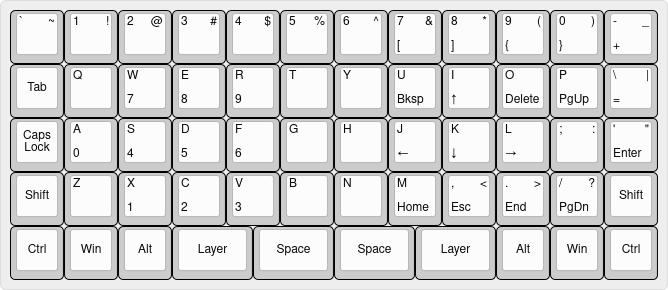
This layout provides multiple benefits:
- It provides one-handed access to the numpad with our left hand while we use the mouse with our right hand.
- It provides access to the navigation keys without moving our right hand.
- It removes the far right column of the keyboard which reduces the strain on our right hand.
It might be hard to keep our layer key down while accessing the bottom row one-handed.
Let's lower our thumb keys to make it easier:
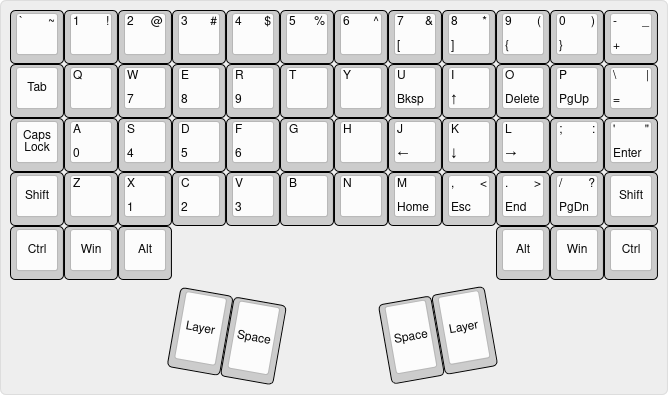
The number row is redundant with our numpad/navigation layer but we don't have enough space to put all of our symbols on the same layer. We could make our left layer key and our right layer key toggle different layers.
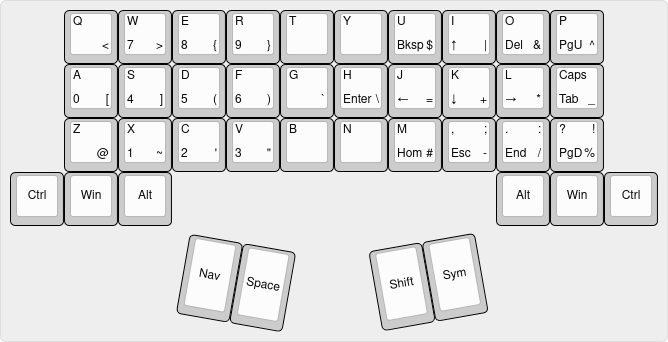
The benefits of this layout are the following:
- No need to stretch our hands to reach the number row for symbols.
- Our pinkies are provided some relief by eliminating the outer columns.
- No need to alternate between the left and right
Shiftkeys when typing consecutive uppercase letters.
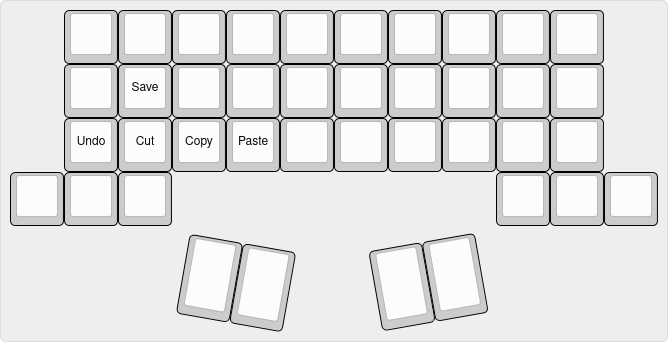
We still have to twist our fingers in uncomfortable ways to use common shortcuts such as Ctrl-z, Ctrl-x, Ctrl-c and Ctrl-v one-handed.
A solution for this would be to turn our Nav layer key into a tap-hold key.
When we press a key while we hold Nav down, we would get a key from our navigation/numpad layer.
But if we just tap Nav and then press a key, the next key we would get would be from our shortcut layer.
Our shortcut layer could look something like the following:
Ideally, we shouldn't have to stretch our hands at all to reach for our modifier keys (Ctrl, Win and Alt).
Home Row Mods
This is where home row mods come into play.
You can put modifier keys on your home row using tap-hold keys.
For example the S and L keys could double as the Ctrl key when held instead of tapped.
The main drawback of this approach is that you can accidentaly trigger shortcuts while typing. Fortunately, a member of the ergonomic keyboard community has mostly solved this problem. You can read more about it here: Urob's Timeless Home Row Mods. You can probably decrease false positives further by moving your mod keys to the bottom row.
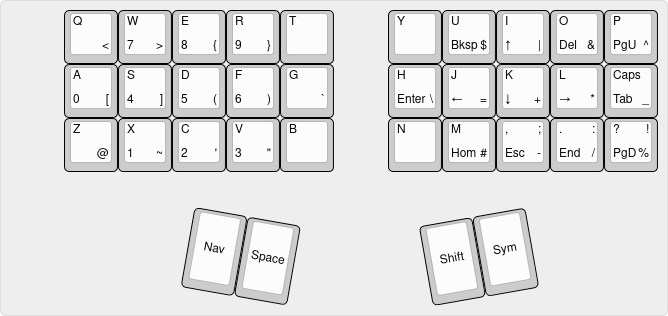
Our keyboard now looks like the following without dedicated mod keys:
Combos
There are some keys that come in handy no matter what layer you are on and you often want them accessible even while holding your mouse.
For me, it's mainly Backspace but I also like having Enter, Escape and Delete on all of my layers.
How can we make this happen even though our layers are mostly full on the left half of our keyboard?
The solution is to set up key combinations. By pressing two keys at the same time, we can produce the signal of a different key.
For example, when I press W and S at the same time, my keyboard could produce the signal for Backspace instead.
Here are a few we could use for our keyboard:
| Combo | Result |
|---|---|
Q + A | Enter |
W + S | Backspace |
E + D | Escape |
R + F | Delete |
These vertical combos only work with keycaps that are large or flat enough to prevent large gaps between adjacent keys. But you can come up with any kind of combination that suits your situation better.
This frees up some keys on the navigation layer:
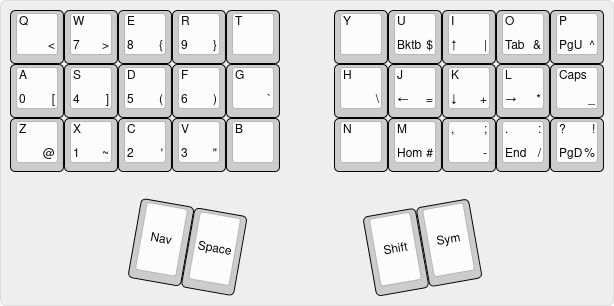
I took the liberty of adding a Shift+Tab (Bktb) macro to the navigation layer for the sake of symmetry and practicality.
Keymap
Our current layout has almost completely eliminated lateral movements for our fingers.
Unfortunately, we still have to move our index fingers to the T/G/B and Y/H/N inner columns.
We can improve the situation by changing our keymap and placing rarely used keys there instead.
Keymaps are a very complex topic and how optimal they are depends largely on what you are going to type. For example, a keymap optimized for typing english prose might not be that good for typing spanish prose.
Inner column usage is only one of the stats that make a keymap more ergonomic. Modern keymaps are designed using the help of an analyzer program. The keymap designer feeds a large corpus of text (for example all of wikipedia) to the program. The program then computes all the stats of a given keymap with respect to the provided corpus. The designer then decides if the keymap is good enough depending on how much weight he gives to each of the stats. Here's a website where you can find a bunch of keymaps with their stats.
Some keymap designers choose to relax some conventional constraints to open up additional optimization opportunities.
The most common trade-off is to put a letter on a thumb key (typically E, R or T).
Another one is to put some rarely used letters on a different layer.
One such person is the creator of the Hands Down keymaps.
We can adapt his Vibranium v variation for our example keyboard:
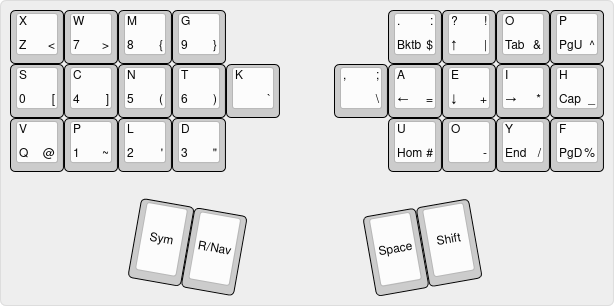
To make this work we also needed to make a few changes to our thumb keys:
- Our layer keys are now both on the left side.
- The
Navkey is a tap-hold key that producesRwhen tapped and gives access to our numpad/navigation layer when held. - The
Symkey is a tap-hold key that gives access to our shortcut layer when tapped and to our symbol layer when held.
Some of you might be wondering where we should put our f-keys. A simple solution would be to put them on the right side of our shortcut layer:
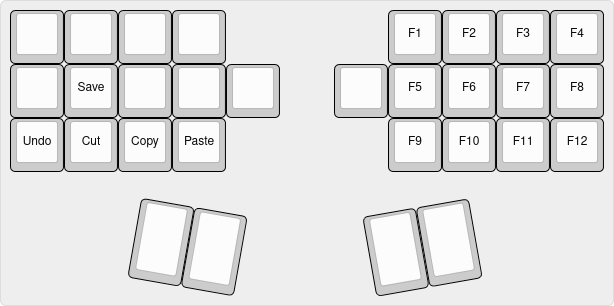
Making the keyboard
Now that we have designed our perfect keyboard layout, we probably want to hold it in our hands and use it. I hope I can write an entire DIY tutorial for this keyboard in the future. In the meantime, you can check out this tutorial.
The easiest solution is to buy a similar keyboard though. The Ferris Sweep, the Corne and the Totem are examples of small ergonomic keyboards you can buy off the shelf.
I'm currently using a layout similar to the one we discussed on a Corne keyboard.
Conclusion
Two years ago, as I was frustrated by my subpar typing experience, I went down the rabbit hole of ergonomic split keyboards and optimized keymaps. It has now been more than a year that I've switched to the layout I described in this article as my daily driver. I can definitely say that my typing experience is much more enjoyable and completely painless now.